This tutorial explains how to get started with Mate. As an example, we'll create a stock quote retrieval screen which sends the quote symbol to the server, receives the current price and stores it in the model for the view to show.
All Mate projects must have:
- One or more events (custom or built-in)
- One or more Event Maps
Typically, the basic steps to create a Mate project are:
- Add the compiled framework code to your project (Mate.swc).
- Create a file that will be the EventMap.
- Include the event map in your main Application file.
- Create a custom event.
- Somewhere, dispatch that event.
- Add EventHandlers in your event map that listen for the event type you dispatched.
- Execute some actions inside the EventHandlers block (ie: call the server, store data, etc).
- Repeat 4-7 for every event you need.
Get the source for this tutorial
Creating a new project
In Flex Builder, create a new Flex project called "StockQuotesExample". Let the main source folder be "src" (default folder).
In the libs folder it creates, place the compiled framework SWC (Mate.swc). This will let you use all Mate classes and tags.
The Quote custom event
Every Mate project is driven by events. In the stock quote example, when the user enters the stock symbol and clicks on the "Get Quote" button, we'll create a new event containing that information that will be sent to the server. Therefore, we need to create a custom event to indicate that the user wants to submit the symbol and retrieve the current price.
Our event will be very simple and it will contain one property: the symbol.
package com.asfusion.mate.stockQuoteExample.events
{
   import flash.events.Event;

   public class QuoteEvent extends Event
   {
      public static const GET: String = "getQuoteEvent";

      public var symbol : String;


      public function QuoteEvent(type:String, bubbles:Boolean=true, cancelable:Boolean=false)
      {
         super(type, bubbles, cancelable);
      }

   }
}
The code above assumes this event is contained within the package: com.asfusion.mate.stockQuoteExample.events
The event also contains a constant that we will use to specify the event type. One event can specify more than one event type.
We also make this event bubble up by default (the second argument of the constructor). Otherwise, we will need to remember to specify it when we instantiate it.
Creating the UI
The user interface will only need a text input and a button:
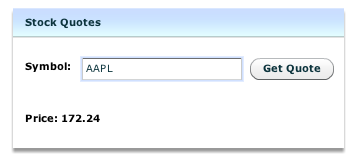
Dispatching the QuoteEvent
When the user clicks the Get Quote button, we'll create the QuoteEvent and dispatch it:
import com.asfusion.mate.stockQuoteExample.events.QuoteEvent;

private function getQuote() : void {

   var quoteEvent:QuoteEvent = new QuoteEvent(QuoteEvent.GET);
   quoteEvent.symbol = symbolInput.text;

   dispatchEvent(quoteEvent );
}
The Event Map
The EventMap is where we place the handlers for all the events the application creates (there could be more than one event map, though).
To add the event map, we need to create a new MXML file, with name "MainEventMap". This component must extend from EventMap. At this point, the event map would be empty and it should look like this:
<?xml version="1.0" encoding="utf-8"?>
<EventMap
   xmlns:mx="http://www.adobe.com/2006/mxml"
   xmlns="http://mate.asfusion.com/">

</EventMap>
Note: we use no namespace for http://mate.asfusion.com so that we don't have to add it to every tag in the event map. You can copy the code above to your file as a starting point.
We'll add the event map to our main Application file:
<?xml version="1.0" encoding="utf-8"?>
<mx:Application xmlns:mx="http://www.adobe.com/2006/mxml" layout="absolute" xmlns:maps="com.asfusion.mate.stockQuoteExample.maps.*">

   <maps:MainEventMap />

</mx:Application>
Setting up debugging
In order to know whether our event map is receiving the events that get dispatched, we add the debugger tag to the event map:
<Debugger level="{Debugger.ALL}" />
The EventMap so far:
<?xml version="1.0" encoding="utf-8"?>
<EventMap xmlns:mx="http://www.adobe.com/2006/mxml" xmlns="http://mate.asfusion.com/">

   <Debugger level="{Debugger.ALL}" />

</EventMap>
Listening for QuoteEvent.GET
In our event map, we will listen for the quote event so that we can send the request to the server.
We'll add an EventHandlers tag that will specify the event type we are listening to. We'll also set the debug attribute to true so that we can see when the handlers run in the debugging output window.
<EventHandlers type="{QuoteEvent.GET}" debug="true">

</EventHandlers>
At the top of the event map we'll need to import the event class.
<mx:Script>
   <![CDATA[
      import com.asfusion.mate.stockQuoteExample.events.QuoteEvent;
   ]]>
</mx:Script>
Inside this EventHandlers block, we'll place the actions we want to perform when the event is dispatched. In this case, we would like to make a server call, for which we'll use the RemoteObjectInvoker tag. Assuming the service in a folder called stockQuoteExample and it is called QuoteService, you will specify the call as follows:
<RemoteObjectInvoker destination="ColdFusion" source="stockQuoteExample.QuoteService"
   method="getQuote"
   arguments="{event.symbol}"
   debug="true">

</RemoteObjectInvoker>
We are calling the method getQuote on that service and sending the symbol coming from the event as an argument of the remote method call.
Handling the server result
The server returns a numerical value with the stock's current price. We will handle that result inside the RemoteObjectInvoker's resultHandlers and call the function "storeQuote" on the QuoteManager class.
<EventHandlers type="{QuoteEvent.GET}" debug="true">
   <RemoteObjectInvoker destination="ColdFusion"
      source="stockQuoteExample.QuoteService"
      method="getQuote"
      arguments="{event.symbol}"
      debug="true">

      <resultHandlers>

         <MethodInvoker generator="{QuoteManager}"
            method="storeQuote" arguments="{resultObject}"/>

      </resultHandlers>

   </RemoteObjectInvoker>

</EventHandlers>
If you have shared data that many views will access, you may want to create a "model". In this simple example, you don't really need a model, but because it is something you will usually need, we'll add it anyway.
Inside the resultHandlers, we are using a MethodInvoker to create an instance of QuoteManager (if it doesn't already exist) and then call the method storeQuote. Inside the resultHandlers, we can access the result coming from the server, which we can pass as the argument of the method call.
Creating our Model, the QuoteManager
The QuoteManager will handle the business logic that has to do with quotes. It will also store the current symbol's quote so that it can be used by views. In the previous section, we were calling the method storeQuote(price) that stores the value of the current symbol's price. The class definition for this manager is:
package com.asfusion.mate.stockQuoteExample.business
{
   public class QuoteManager
   {

      [Bindable]
      public var currentPrice:Number;

      public function storeQuote(price:Number):void {
         currentPrice = price;
      }

   }
}
Ideally, the currentPrice property would be read-only instead of public. But in order to do that and still making it bindable, we will need to do some additional work.
Also, when the method storeQuote is called, we can execute any necessary business logic.
Showing the current price value in the view
So far, when the event is dispatched, we make a service call, the server returns the current price and that price is stored in the QuoteManager. But now we need to be able to show that value in the view.
In the view where we want to show the price, we'll add a property:
[Bindable]
public var price:Number;
and then show that number anywhere in the view we want, for example, in a Label:
<mx:Label text="Price: {price}" />
That's all we need in the view.
Getting the current price from the model Manager to the view
But how does the view get this variable populated from the price stored in the QuoteManager?
In our event map, we'll add another set of tags. These tags will assign a property on the model to a property on the view, and because the property on the model is bindable, the view will always get the most current value.
<Injectors target="{QuotePanel}">

   <PropertyInjector targetKey="price" source="{QuoteManager}" sourceKey="currentPrice" />

</Injectors>
When you add this, make sure you have all the necessary import statements at the top of your event map.
Event-Service call-Model Manager-View
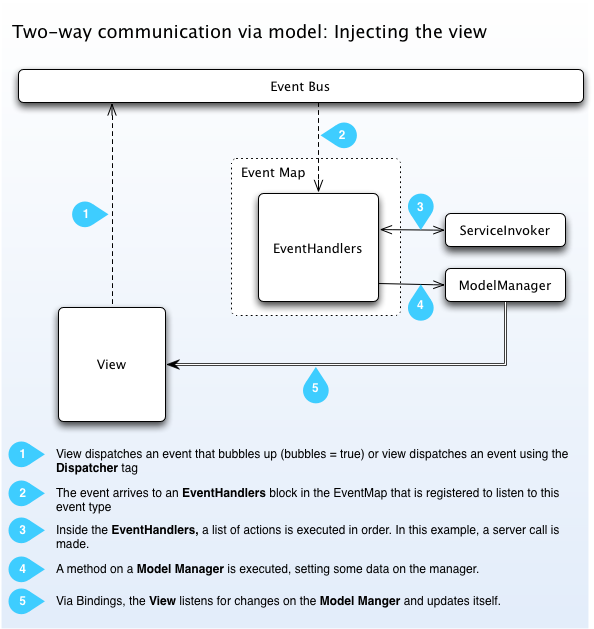
View the example running, view the source and download the example in the example page.
The Command pattern is very simple to implement by using the MethodInvoker tag making it call execute. We have a tag that actually does that: CommandInvoker
What neither the tag nor Cairngorm does is to implement the unexecute function necessary to "undo". That can be done with the MethodInvoker tag too.
Thanks for good job!!!!
Hope you give more demo and information!
I'll try out this framework this weekend and post comments if any in detail later.
BTW... Do you guys have any statistics on performance overhead of this framework??
Really It's Great job!
Plz Don't stop to develop this framework!
I wish work with this framework for long time :)
Thank you for your comments!
Chakree,
No, we don't have any statistics or benchmarks.
honestly u gave me way to play with frameworks for flex its very light and awsome ..
Just to test, I have added this to the MainEventMap.mxml
<faultHandlers>
<MethodInvoker generator="{QuoteManager}"
method="onFailure" arguments="ERROR" />
</faultHandlers>
and I've messed up the wsdl address to an non-existing hostname. So I was expecting the faultHandler fired up and then complain about not being able to find "onFailure" method in QuoteManager. But it didn't happen. It is easy to make typos while dealing with Tags, if they're not caught in compile time, they should be caught in runtime.
Maybe I did miss something but the reason for me going this practice, I have started to convert an existing cairngorm application of mine to mate and when I have some challenges I wanted to go back and play with the sample application which is way simpler than the application I am working on.
If not, are there any MVC frameworks around that do not require Flex MXML for the UI. I'm coding in Flash CS3
Thanks,
PJ
[RPC Fault faultString="[MessagingError message='Destination 'ColdFusion' either does not exist or the destination has no channels defined (and the application does not define any default channels.)']" faultCode="InvokeFailed" faultDetail="Couldn't establish a connection to 'ColdFusion'"]
at mx.rpc::AbstractInvoker/http://www.adobe.com/2006/flex/mx/internal::invoke()[E:\dev\3.1.0\frameworks\projects\rpc\src\mx\rpc\AbstractInvoker.as:259]
at mx.rpc.remoting.mxml::Operation/http://www.adobe.com/2006/flex/mx/internal::invoke()[E:\dev\3.1.0\frameworks\projects\rpc\src\mx\rpc\remoting\mxml\Operation.as:197]
at mx.rpc.remoting::Operation/send()[E:\dev\3.1.0\frameworks\projects\rpc\src\mx\rpc\remoting\Operation.as:113]
at Function/http://adobe.com/AS3/2006/builtin::apply()
at mx.rpc.remoting.mxml::Operation/send()[E:\dev\3.1.0\frameworks\projects\rpc\src\mx\rpc\remoting\mxml\Operation.as:170]
at com.asfusion.mate.actions.builders::RemoteObjectInvoker/run()[/Users/nahuel/Documents/Flex Builder 3/MateGoogle/src/com/asfusion/mate/actions/builders/RemoteObjectInvoker.as:226]
at com.asfusion.mate.actions::AbstractAction/trigger()[/Users/nahuel/Documents/Flex Builder 3/MateGoogle/src/com/asfusion/mate/actions/AbstractAction.as:61]
at com.asfusion.mate.actionLists::AbstractHandlers/runSequence()[/Users/nahuel/Documents/Flex Builder 3/MateGoogle/src/com/asfusion/mate/actionLists/AbstractHandlers.as:325]
at com.asfusion.mate.actionLists::EventHandlers/fireEvent()[/Users/nahuel/Documents/Flex Builder 3/MateGoogle/src/com/asfusion/mate/actionLists/EventHandlers.as:257]
at flash.events::EventDispatcher/dispatchEventFunction()
at flash.events::EventDispatcher/dispatchEvent()
at mx.core::UIComponent/dispatchEvent()[E:\dev\3.1.0\frameworks\projects\framework\src\mx\core\UIComponent.as:9156]
at com.asfusion.mate.stockQuoteExample.views::QuotePanel/getQuote()[/Users/peder/Documents/Flex Builder 3/StockQuoteExample/src/com/asfusion/mate/stockQuoteExample/views/QuotePanel.mxml:17]
at com.asfusion.mate.stockQuoteExample.views::QuotePanel/___QuotePanel_Button1_click()[/Users/peder/Documents/Flex Builder 3/StockQuoteExample/src/com/asfusion/mate/stockQuoteExample/views/QuotePanel.mxml:26]
Regarding your first question, no, not at this time.
Please ask your more specific questions in the forums.
I have a growing Flex application, and have opted to stay away from other frameworks because they are all either overkill or appear as though they were slapped together over a couple weekends with lots of cold beer. I have a good feeling about Mate, and will most definately give this a go.
Great work!
Tom
I am newbie to flex, kindly bear with my ignorance :)
Application:
<mx:WindowedApplication
creationComplete="init()"
xmlns:mx="http://www.adobe.com/2006/mxml";
xmlns="*">
<TheEventMap/>
<mx:Script>
<![CDATA[
private function init() : void
{
dispatchEvent(new Event("customEvent"));
new JustAClass().doDispatch();
}
]]>
</mx:Script>
</mx:WindowedApplication>
TheEventMap:
<EventMap xmlns="http://mate.asfusion.com/">;
<Debugger level="{Debugger.ALL}" />
<EventHandlers type="customEvent" debug="true" >
<MethodInvoker generator="mx.controls.Alert" method="methodThatDoesNotExist" arguments="6"/>
</EventHandlers>
</EventMap>
JustAClass:
public class JustAClass extends EventDispatcher
{
public function doDispatch() : void
{
dispatchEvent(new Event("customEvent"));
}
}
The code you show does not work because you are dispatching the event from an object that is not in the display list.
By the way, it would be better if you ask this type of questions in the forums :)
This is my fault handler setup:
<code>
<faultHandlers>
<MethodInvoker generator="{QuoteManager}" method="faultHandler" arguments="{fault}"/>
</faultHandlers>
</code>
and in QuoteManager
<code>
/**
* Handle the failed remoting call
*/
public function faultHandler(event:Fault):void
{
Alert.show(event.faultString, "Error Executing Call");
}
</code>
The trick here is to make use of the auto-completion within Flex/Eclipse IDE and some debugging to figure out whats going on behind the scenes.
I just have some comments on the documentation.
I think most of the docs here are good. But I feel there are things lacking.
Chiefly, what's lacking is a run down of the various MXML tags that can be used and how to use them - things such as ResponseAnnouncer, that are only talked about in the API. I would like to read an article that explains when you should use each tag, and a small example of it. That way I would feel confident that I could and would use Mate the way it was intended.
thanks,
justin
Saw the link to Tags. Funny how I missed that before.
Hello from Poland!
Very nice framework.
I made CRUD application in this framwerk on 8 ours. I have a few problems but yours documentation is very useful. I am JAVA/PHP programmer and use this languages to handle services in my first flex-made apllication. When I finish i paste sorce code for analyze and discssiion on this forum.
Mariusz
Thanks
I want to ask a question. I do not understand why do we need a ModelManager and so a an injector. We can directly set the attribute on view, by a callback so get rid of extra work of defining injector, methods, variables in model manager etc. Ok we want to seperate model and view but generally this is only setting a variable. I really get tired because of this model manager, so started use only callback. What is my drawback? Thanks
Can anybody give a example source code of integrating MATE with JAVA.
Thanks,
Vasankar
Thanks,
Very easily implementable framework.
Nice and Simple documentation!!!
Much appreciated.